Connect Snug to Claude
Let Claude run your Snug planner. Works with Claude Code and Claude Desktop. No JSON editing required, Snug hands you a ready-made prompt that sets Claude up for you. The whole thing takes about 3 minutes.
1. Generate your API key
Open Snug, go to Settings → AI Integration, and click Generate API key. Give it a name (e.g. "Claude") and click Add.
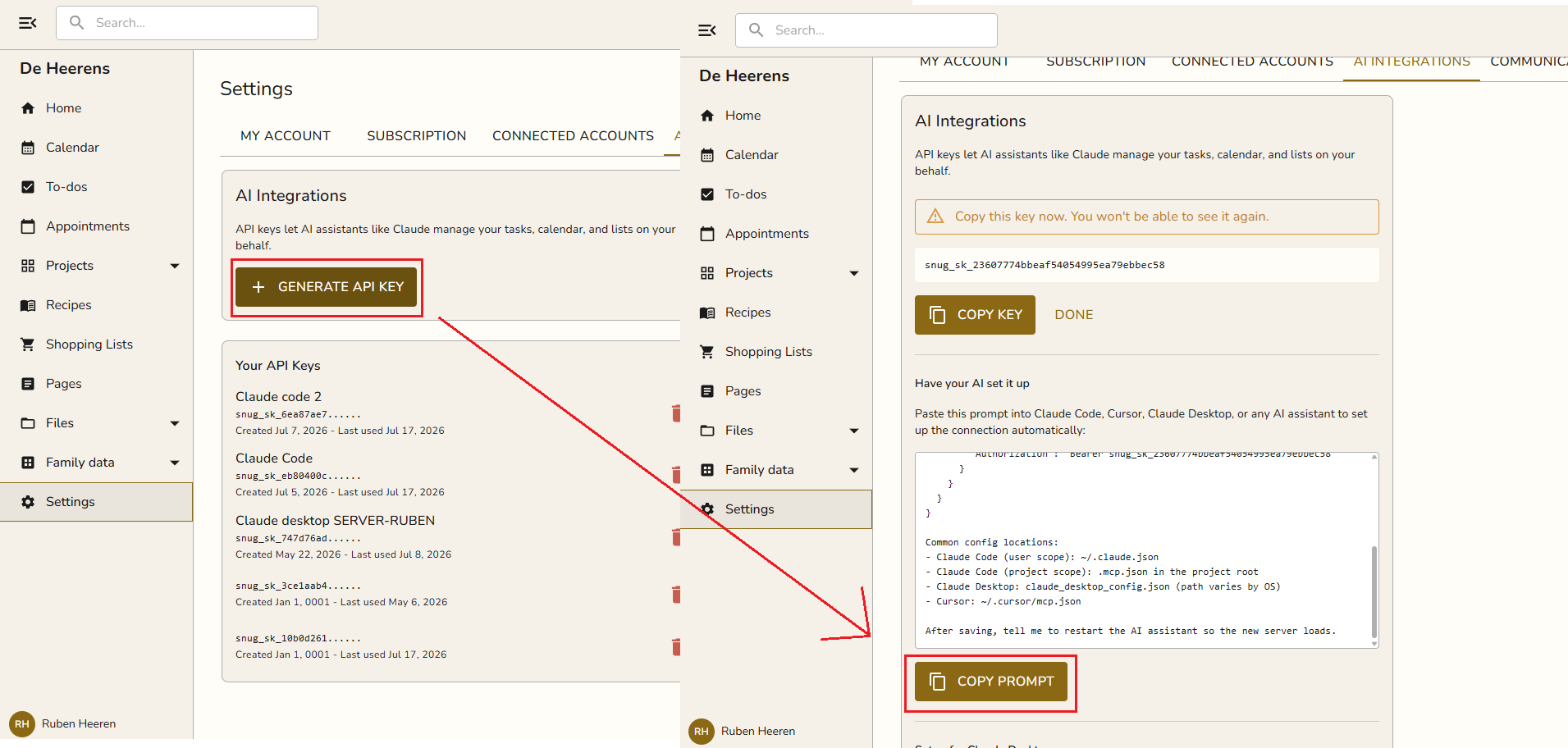
Your key shows only once
Copy it before you leave the screen. If you lose it, just delete the key and generate a new one.
2. Click Copy prompt
Right below your new key, Snug shows a Copy prompt button (see the screenshot above). Click it. This copies a short instruction that already contains your key and tells the assistant exactly how to connect.
3. Paste it into Claude
Paste the prompt into a Claude Code session and send it. Claude writes the MCP config for you and tells you to restart. After restarting, confirm it's connected:
claude mcp list
You should see snug listed as connected.
Paste the prompt into a Claude Desktop chat and send it. Claude gives you the exact config block and where to put it. Open Settings → Developer → Edit Config, paste the block into claude_desktop_config.json, save, then fully quit and reopen Claude Desktop.
Shortcut
Snug also has a Copy config button lower on the same screen with the exact block for Claude Desktop, so you can skip straight to editing the file.
4. Verify it works
Start a new chat and ask:
What projects do I have in Snug?
Claude will call the Snug tools and list your projects. You're all set.
Example prompts
Once connected, try any of these:
- Plan our week. "Look at my calendar and open tasks, then suggest a plan for this week and add the tasks you recommend."
- Triage my board. "Go through the Todo column of my Home Renovation project and flag anything that's overdue or missing a due date."
- Recipe to groceries. "Add all the ingredients from my Lasagna recipe to the Groceries shopping list."
- Email to tasks. "Here's an email from school. Create tasks for every action item and put them in my Back to School project." (paste the email)
- Meal plan. "Make a dinner plan for next week from my saved recipes and build a shopping list for it."
- Quick capture. "Add a task to call the plumber tomorrow morning, and save the plumber as a contact with this number: 0470 12 34 56."
- Catch up. "What's on my calendar for tomorrow, and is anything double-booked?"
- Clean up. "Find tasks in my Garden project that have been sitting in Doing for more than two weeks and summarize them."
See it in action
Read the walkthrough: Run your family planner with Claude.
Troubleshooting
| Problem | Fix |
|---|---|
| Claude doesn't see the Snug tools | Make sure you fully restarted the app (quit, don't just close the window). In Claude Code, run claude mcp list to confirm it's connected. |
| "Invalid API key" | The key was mistyped or deleted. Generate a fresh one in Settings → AI Integration and update your config. |
| It worked before, now it doesn't | Check the key still exists under Settings → AI Integration → Your API keys. Deleting a key revokes it immediately. |
Still stuck? Email [email protected].